

Most cloud storage apps treat all your files the same. Everything you upload work documents, personal photos, financial records, private notes sits in the same library visible to anyone who picks up your unlocked phone.
The TeraBox personal vault fixes this. It is a separate, password-protected section inside your account that is completely hidden from your main file library. Nothing stored in the vault appears in thumbnails, search results, or recent files. Opening it requires a separate PIN, fingerprint, or facial recognition check even if you are already logged in to TeraBox.
Table of Contents
What is TeraBox Personal Vault?
TeraBox Personal Vault is a private, encrypted storage area within your TeraBox account protected by a second authentication layer. It is separate from your regular cloud storage. Files in the vault do not appear in your main library, do not appear in search results, and are not included in shared link previews.
You access it through a dedicated Vault section in the TeraBox app, protected by your vault password or biometric authentication. Even if someone knows your main TeraBox login credentials, they cannot access vault contents without the separate vault password.
How to Set Up TeraBox Personal Vault
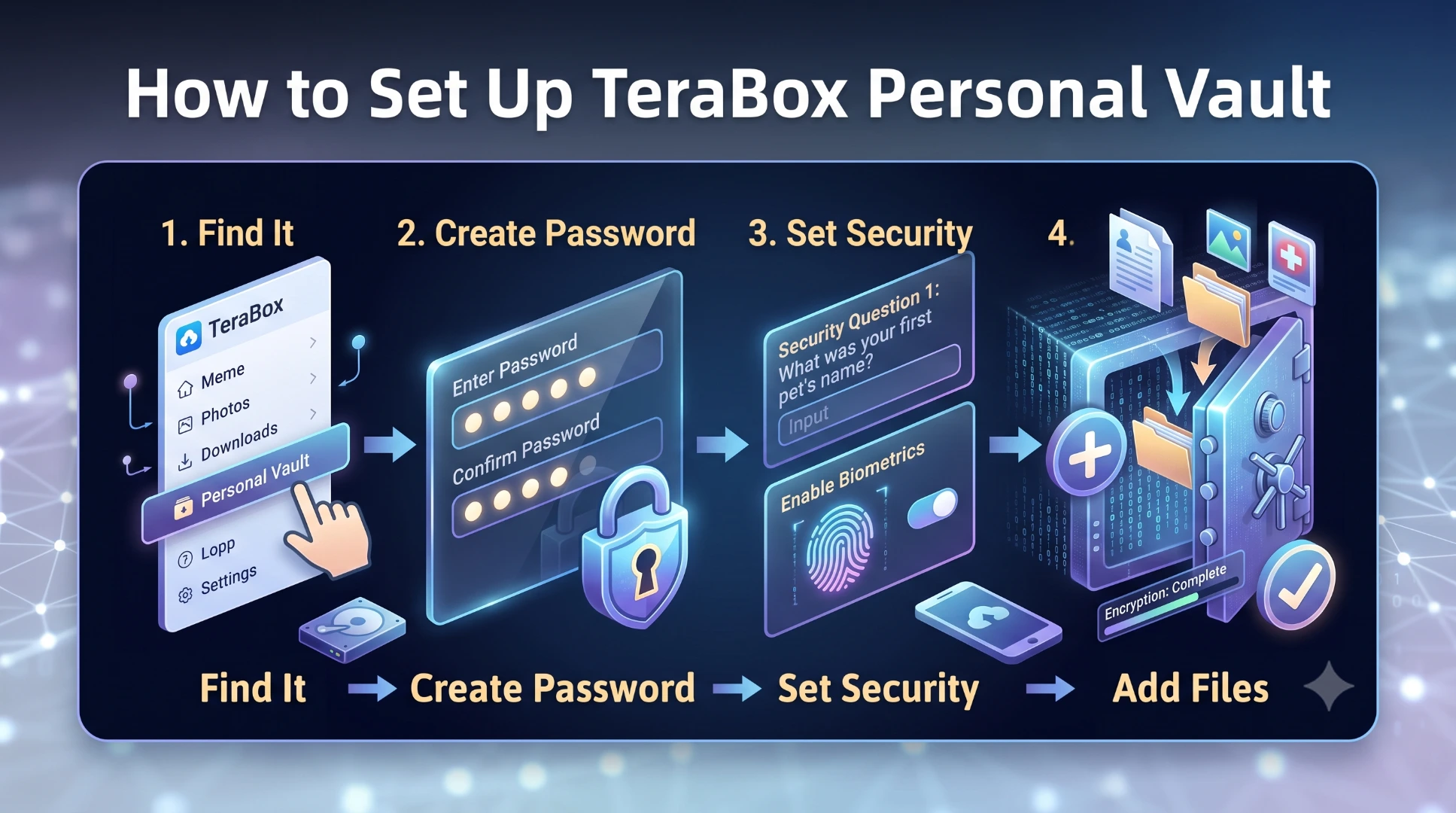
Open the TeraBox app on your Android device. Tap the Vault icon in the bottom navigation bar or locate it in the main menu depending on your app version. On first use the app asks you to set a vault password choose a PIN you will remember but that differs from your main account password.
Enable biometric authentication when prompted. This lets you open the vault using your fingerprint or face recognition rather than typing a PIN each time, which is both faster and more secure than manual entry.
Once set up, the vault is immediately active. Move any existing files into the vault using the move file option inside the app. Future uploads can be directed to the vault directly during the upload process.
What to Store in TeraBox Personal Vault
The vault is designed for files that need an extra layer of access control beyond your main login.
- Identity documents: including passport scans, national identity card photos, and driver's licence images belong in the vault rather than your regular library. If your phone is unlocked by someone else, these documents remain protected.
- Financial documents: including bank statements, tax records, salary slips, and investment account screenshots benefit from vault storage. These documents contain information that would be damaging if accessed without authorisation.
- Private personal photos: that you would not want appearing in the regular gallery or shared accidentally should go in the vault rather than the standard backup folder.
- Business documents: including client contracts, confidential project files, and legally sensitive correspondence are appropriate vault content for professional users.
How to Move Files Into the Vault
Open TeraBox and navigate to the file you want to move. Tap and hold the file to enter selection mode. Tap the three-dot menu or the options icon. Select Move to Vault. The file disappears from your main library and appears only inside the vault section.
Vault files are still stored on Flextech's cloud servers they are not stored exclusively on your device. The vault adds a second authentication layer at the app level rather than a separate encryption layer at the storage level.
TeraBox Vault vs Regular Library Key Differences
| Feature | Regular Library | Personal Vault |
|---|---|---|
| Visible in main library | Yes | No |
| Appears in search results | Yes | No |
| Visible in shared previews | Yes | No |
| Requires second password | No | Yes |
| Supports fingerprint access | Main login only | Yes, separate |
| Backed up automatically | Yes | Yes |
| Accessible from all devices | Yes | Yes, with vault password |
Common Vault Questions
What happens to vault files if you forget the vault password?
Flextech provides a vault password recovery option tied to your main account email. Use the Forgot Vault Password link inside the vault entry screen to receive a reset link. Note that vault contents are not deleted during password recovery you are resetting access credentials only.
Can someone access your vault if they know your main TeraBox password?
No. The vault requires its own separate password. Knowing your main TeraBox login credentials gives no access to vault contents. Only someone who knows your vault password or can pass your biometric check can open it.
Does the vault work the same on PC?
Yes. The TeraBox Windows app includes the personal vault with the same password protection. Access it from the left navigation panel under the Private or Vault section depending on your app version.